Settings and Keybinds That Matter in Dota 2
The settings worth changing before your tenth Dota 2 match: quickcast, self-cast, camera speed, minimap size, item and TP hotkeys, auto-attack and chat wheel.
· Patch 7.41
This page was checked against patch 7.41 and the current patch is 7.41f. The explanation still holds, but any number on it may have moved.

Six settings change how well you play in your first hundred matches: quickcast, self-cast, camera speed, minimap size, the hotkeys for items and the Town Portal Scroll, and the auto-attack rule. The rest of the settings menu is preference. This guide says what each setting does, what to set it to, and why, and finishes with what experienced players change that a beginner should not copy yet. There are no screenshots on this page; the diagram below shows the default keyboard layout, and the HUD guide shows the panels the settings move.
- Turn quickcast on for items. It removes a click from every cast and is the largest single improvement available in a menu.
- Raise the camera speed a little every week. A camera that moves fast lets you look at the minimap and come back.
- Bind the Town Portal Scroll and the courier to keys you can press without looking.
- Set auto-attack to "after spell" once you can last hit. Before that, leave it on.
The default keys and what to move
The client binds abilities to Q, W, E and R, with D and F for the extra abilities some heroes have. Items go to the number row or to Z, X, C, V, B and N, depending on the layout you chose at install. The Town Portal Scroll, the courier, the neutral item and the talent tree each have their own key. The diagram shows the default layout for the common option.
- Abilities
- Items (number row)
- Attack-move, stop, TP, neutral item
Check your own client: the default item layout has changed between clients, and every one of these is rebindable.
Move two things before anything else. The  Town Portal Scroll key should be a key your hand rests on, because you press it in a panic more than any other. The courier key should be next to it. Players who use the letter layout for items often put the scroll on T and the courier on a mouse button. Whatever you choose, keep it for a year; muscle memory is the point.
Quickcast and self-cast
Quickcast casts an ability or item the moment you press the key, at the cursor's position, without waiting for a click. Normal cast shows a targeting cursor and waits. Quickcast saves a click on every cast, which over a match is hundreds of clicks and a fraction of a second on each. A  Blink Dagger on quickcast takes you where the cursor is when you press the key, which is the difference between escaping a stun and not.

Set quickcast per ability and per item slot in the hotkeys menu, not globally. Start with every item slot on quickcast and with point-target abilities on quickcast. Leave area-target abilities on normal cast until you know their size, because a misplaced area spell wastes the ability. Then switch those as well. Heroes with many spells, such as  Invoker, are the exception: many Invoker players keep the invoked spells on normal cast because the targeting matters more than the speed.
Self-cast is the second setting on the same screen. Double-tapping an ability key casts it on yourself, and a separate "cast on self" modifier does the same. Set the modifier to Alt or to a spare key so that a  Force Staff or a
 Magic Wand goes on you without a click. Supports who save allies use both constantly.
Camera and minimap
Camera speed is the one setting to keep raising. A slow camera makes it hard to look at a fight elsewhere and come back to your hero, so players with a slow camera stop looking, and players who stop looking die in fog. Raise it a step every few matches until you can follow a team fight and return to your hero without losing it. Edge panning, where the camera moves when the cursor touches the screen edge, is the default and works; camera grip, where you hold a key and drag, is faster once learned.
Make the minimap larger. The default is small, and a larger minimap is easier to glance at from the corner of your eye. Turn on the option that shows hero icons instead of dots, and the one that keeps the minimap showing the enemy hero's last position. Some players move the minimap to the right side of the screen so their hand does not cover it; that is preference, not a rule. Vision, fog and wards explains what the minimap can and cannot show you, whatever its size.
One camera option to turn off: the camera that follows your hero constantly. It stops you looking elsewhere. Centering the camera on your hero when you respawn is fine. Bind "center camera on hero" to a key instead, and press it when you lose your hero, which will happen often at first.
Attack, deny and stop
Auto-attack has three settings: always, never, and after casting a spell. Always is the beginner default and it pushes the lane, wastes attacks that draw creep aggro, and cancels last-hit timing. Never is what most experienced players use, and it requires you to click every attack. After-spell is the middle ground. Switch away from always the moment you can last hit, and Last hitting and denying explains why the timing matters.
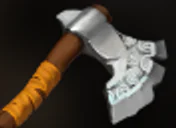
A  Quelling Blade helps the click land; the settings help you make it. Turn on "right-click to force attack", which lets a right-click on your own creep Deny it and on an allied hero attack it when a deny is possible. Turn on the option that shows attack range as a ring when you hover an attack command, which is the fastest way to learn your hero's reach. Bind stop and hold to keys near your movement hand. Stop cancels an attack animation after the damage lands, which is the Animation cancel that every hero benefits from. Hold keeps a hero still while a spell channels. Attack speed and base attack time explains the attack animation the stop key interrupts, and the Cast point of an ability works the same way.
The attack-move command, bound to A by default, attacks the nearest enemy in the direction you click and is safer than right-clicking during a chase. Ranged heroes learn to Orb-walk with it, attacking and moving between attacks without losing time.
Unit control
Every hero that controls other units needs the control-group keys. Bind "select all controlled units" and "select all other units" to keys next to your abilities, and learn the Tab key, which cycles through the units you control.  Meepo players build their whole layout around these;
 Crystal Maiden never presses them. Most heroes fall between, with a courier, a ward or two and an occasional summon, and Illusions and summons lists the heroes for whom the keys matter.

The courier deserves its own paragraph. Its default behavior is a single key that sends it to you with whatever is in the stash, and a second key that returns it. Turn on the option that makes the courier deliver automatically when you buy an item, which most players prefer, and the one that sends it by the safer route. Glyph, Scan and courier explains what can kill it and why a lost courier costs the team.
Chat wheel, pings and mute
The chat wheel is a radial menu of pre-set messages bound to one key, and every phrase is translated into every teammate's language by the client. Fill it with the eight you use: missing, retreat, on my way, group up, push, get back, well played, and a thank you. Pings do the rest. Alt-click for a normal ping, the retreat modifier for danger, and Alt-click on a hero, item or ability to announce it. The HUD guide lists what each Alt-click says.
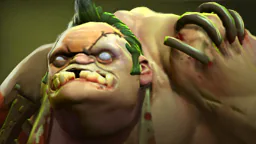
 Pudge players learn quickcast for the hook first, and everyone else learns mute because of Pudge players. Learn where the mute button is on the scoreboard before you need it. A teammate who stops helping and starts blaming costs you focus for the rest of the match, and the client lets you mute their chat and voice separately. Muting is not rude; it is a setting. The communication guide covers the rest, including the Tilt the mute button prevents.
Video and performance
Dota 2 runs well on modest machines if a few options are lowered. Turn off ambient creatures and the grass, lower shadow quality, and cap the frame rate slightly above your monitor's refresh rate. A stable frame rate matters more than a pretty one, because a stutter during a fight costs the click that mattered. Keep the option that shows the enemy's health as numbers over the bar; it helps with last hits and with judging an execute from a hero like Axe. Turn on the sound option that plays a distinct sound when you have unspent ability points and when your TP slot is empty.
Teleport and buyback explains the scroll's rules; the settings menu only makes sure you never forget to buy one.
What experienced players change, and what to leave
Experienced players share four habits: quickcast on everything, a fast camera, a large minimap, and a layout that keeps the scroll, the courier and their most-used item under three fingers. Copy those. What they also do, and a beginner should not copy yet: legacy key layouts from older games, mouse settings tuned for a specific sensitivity, and custom ability layouts per hero. The "smart double tap" options that change what a double press does belong on that list too. Each of those is a preference that took years to settle, and each will confuse you now.
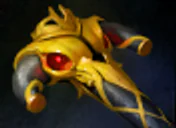
One more habit worth copying: they bind the same kind of item to the same slot every match. The  Black King Bar always in one slot, the escape item always in another, the scroll always on its key. When the fight starts, the hand knows where things are.
Practice this
- Turn on quickcast for every item slot and play one bot match. Cast every item at least once.
- Raise the camera speed one step. Play a match. Raise it again next week.
- Bind the Town Portal Scroll and the courier to keys near your fingers and press each ten times in the demo.
- Set the chat wheel to eight phrases and use three of them in your next match.
- Switch auto-attack to "after spell" as soon as you can last hit most of a wave.
- Use the random hero tool to pick a hero with a summon and practice the control-group keys once.
Next reads
- The HUD explained — what every panel the settings move actually shows.
- How to last hit and deny — the drill that the auto-attack setting is for.
- Common beginner mistakes — several of the twenty-five are settings problems.
- How to practice — demo mode, bots and replays, where new keybinds are tested.
- The complete beginner's guide — the rest of the first ten hours.
Heroes this affects

Items this affects
Common questions
Should a beginner use quickcast?
Yes, for items and for point-target abilities, from the first week. It removes one click from every cast. Keep normal cast for area abilities until you know their radius, then switch those too.
Is a higher camera speed better?
A faster camera lets you look around more often, which is the habit that keeps you alive. Raise it in small steps until you can follow a fight without losing your hero, and stop there.
Should I turn auto-attack off?
Set it to attack only after you have cast a spell, or off entirely, once you can last hit. Full auto-attack pushes the lane and draws creep aggro. In your first matches, leave it on.
Do pros use special settings?
Most use quickcast, a fast camera, a large minimap, and their own hotkey layout. Nothing they use is unavailable to you, and none of it replaces practice.
What is the one setting to change right now?
Bind the Town Portal Scroll to a key your hand rests on, and bind the courier to another. Both are used many times a match, and both default to keys most players find awkward.
Patch 7.41Checked on Sep 15, 2026